
 When you are in an Active Directory network environment, you can set Outlook policies to enforce settings on a specific or a group of users or computers.
This is mainly to be used to change or limit the default behavior of Outlook in a corporate environment but can also be useful in some home environments. For instance, as a home user you might want to set policies on what your children can and cannot do in Outlook.
This article explains how you can set Group Policies for Outlook and which tools are needed for it.
- Download and install the Office Policy Templates
- Setting Policies in an Active Directory network environment
- Setting Policies on the local computer
Download and install the Office Policy Templates
 The Group Policy Administrative Templates and documentation files are specific for each Office version. Use the links below to download the correct template files for your Outlook version.
- Office 2010 Policy Templates
- Office 2013 Policy Templates
- Office 2016, Office 2019, Office 2021 (LTSC) and Microsoft 365 Apps for Enterprise Policy Templates
Installing the Office Policy Templates
 After downloading the Office policy templates, you must install them before you can use them. While there are separate packages for the 32-bit and 64-bit AdminTemplates, this only applies to the Office Customization Tools (OCT) and not the policy templates themselves. The adm and admx templates in both packages are exactly the same.
- Run the installer and accept the License Agreement.
- Select a location to extract the file to. For example:
C:\OfficePolicies - Open the folder in Explorer, select all the ADMX-files from the ADMX folder and the ADML-files from the en-us folder (or your localized language when available) and copy them to;
C:\Windows\PolicyDefinitions- If you want to control a Active Directory network environment, then you can also copy them to the
Sysvol\Domain\Policies\PolicyDefinitionsfolder on a domain controller.
- If you want to control a Active Directory network environment, then you can also copy them to the
- If you get prompted whether you want to overwrite the files, choose “Yes to All”.
If you get prompted by User Account Control (UAC), press Continue or provide Administrator level credentials.
Setting Policies in an Active Directory network environment
 This method describes how you can set Group Policies for clients in a corporate Active Directory environment. Aside from installing the policy templates for your Office version(s), you’ll need the Remote Server Administration Tools (RSAT) to edit and set the policies.
Download: RSAT for Windows 7 (32-bit and 64-bit)
Download: RSAT for Windows 8 (32-bit and 64-bit)
Download: RSAT for Windows 8.1 (32-bit and 64-bit)
Download: RSAT for Windows 10 (32-bit and 64-bit) (Version 1803 and earlier)
Install RSAT for Windows 11 and Windows 10 (Version 1809 and later)
Windows 11 and Windows 10, Version 1809 and later, have the RSAT built-in as “Optional features”. You can install the Group Policy Management Tools Console (GPMC) in the following way;
- Windows 10
Start-> Settings-> Apps-> Optional features-> Add a feature-> select: RSAT: Group Policy Management Tools - Windows 11
Start-> Settings-> Apps-> Optional features-> View features-> select: RSAT: Group Policy Management Tools
Group Policy Management Console (GPMC)
- The GPMC can be opened in several ways. Some are;
- Start-> type (to search); Group Policy Management
- Start-> type (to search); gpmc.msc
- Start-> and from the All apps list choose; Windows Administrative Tools-> Group Policy Management
- Control panel-> Administrative Tools-> Group Policy Management.
- Run-> type; gpmc.msc
- Run-> type; mmc-> File-> Add/Remove Snap-in-> Group Policy Management
In the left column, browse to the folder Group Policy Objects and select the Policy you wish to enforce Outlook policies on.
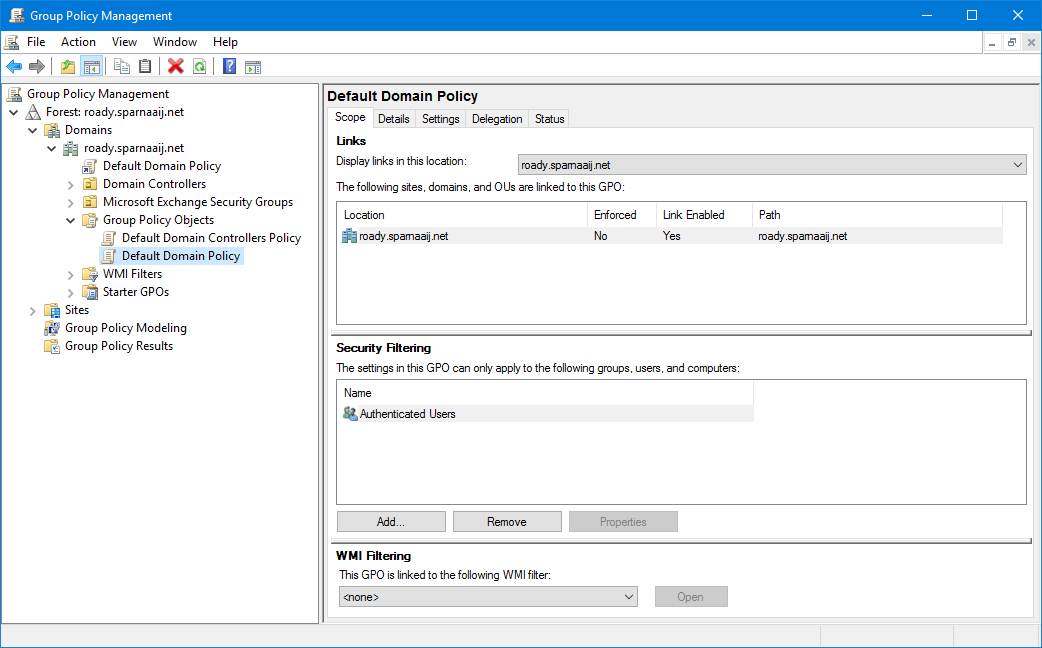
The Group Policy Management Console with the Default Domain Policy GPO selected.- Right click the Policy and choose Edit…
- The policy templates which you installed for Outlook will be loaded automatically under;
User Configuration-> Policies-> Microsoft Office Outlook version. You now will see Outlook listed and you can now enforce settings.
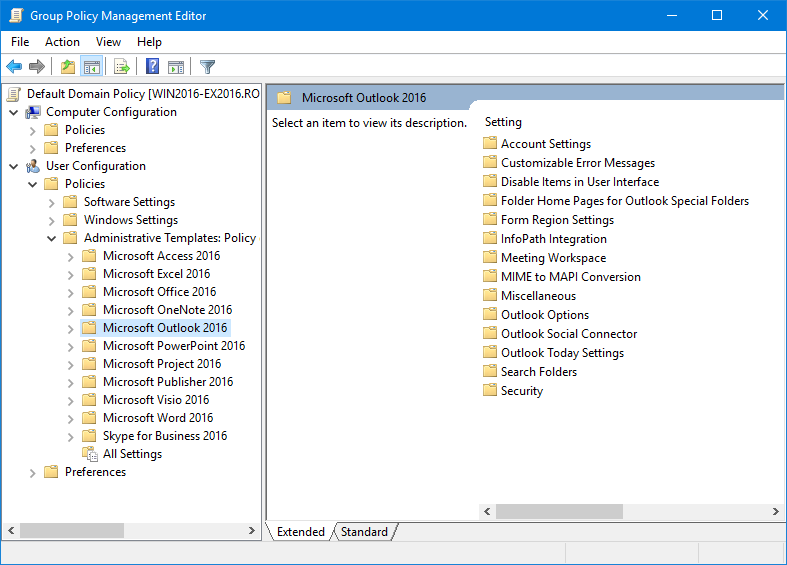
The Outlook 2016 policy template loaded in the Group Policy Management Editor.
Setting Policies on the local computer
 Once you’ve installed the Group Policy Administrative Templates of your Office version, you can also control the Office policies on your own computer via the Group Policy Editor.
Your computer can but doesn’t need to be part of a domain for this.
Note:
The Group Policy Editor is not available when you are using a “Home” version of Windows.
- You can open the Group Policy Editor in the following way;
Start-> type;gpedit.msc - The policy templates which you installed for Outlook will be loaded automatically under;
User Configuration-> Administrative Templates-> Microsoft Office Outlook version. You now will see Outlook listed and you can now enforce settings. Some of the settings will only take effect after you restart your computer.
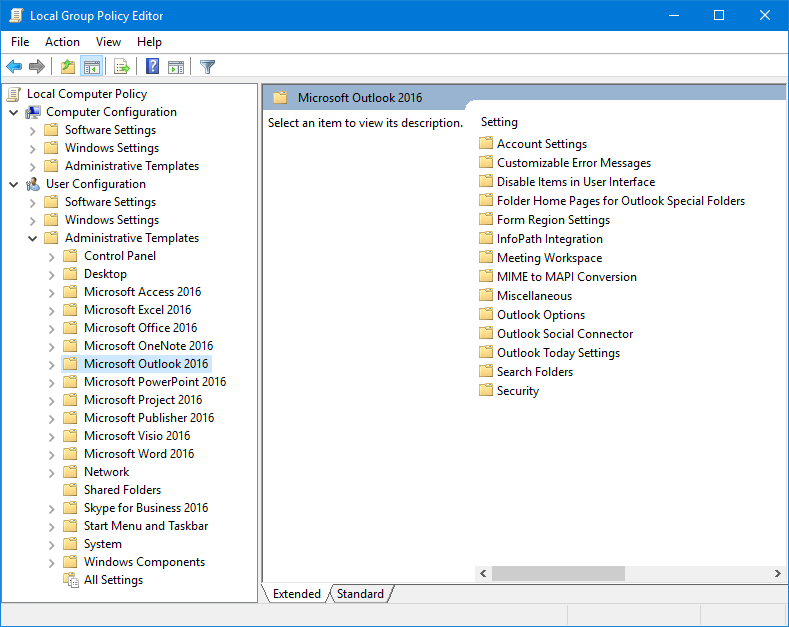
The Outlook 2016 policy template loaded in the local Group Policy Editor.
Note:
Local policy settings are enforced to all users of that computer; even the administrator! As an administrator you can of course change the settings back with the Group Policy Editor when required.

