
 AutoArchive and Archive are options in Outlook to automatically or manually initiate moving of Outlook items to an Outlook Data File (pst-files) based on preconfigured settings. You can set default AutoArchive settings but also overrule them on a per-folder level or via a manual Archive.
In some cases you’ll notice that AutoArchive or Archive is not working as expected even when all settings appear to be correct. Use the steps below to troubleshoot and get AutoArchive and Archive working again.
- Changing AutoArchive or Archive settings
- Archive command not available
- Excluded from AutoArchive
- Modified date or sent/received date
- Damaged archive.pst
- Full archive.pst
- Full mailbox
Note:
In this guide, the terms AutoArchive and Archive are being used interchangeable unless specified otherwise.
Changing AutoArchive or Archive settings
 As mentioned, AutoArchive and Archive settings can be configured on multiple levels;
- Default AutoArchive settings.
- Per Folder AutoArchive settings.
- Manual Archive settings.
Option 1: AutoArchive settings
Default AutoArchive settings can be set by via;
- Outlook 2007
Tools-> Options-> tab Other-> button AutoArchive… - Outlook 2010 / 2013 / 2016 / 2019 / Microsoft 365
File-> Options-> Advanced…-> button AutoArchive Settings…
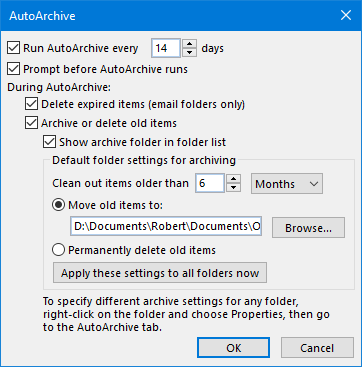
AutoArchive settings.
Option 2: Per folder AutoArchive settings
To overrule default AutoArchive settings for a specific folder;
Right click on the folder-> Properties-> tab AutoArchive.
Option 3: Manual Archive settings
You can manually start the Archiving process via;
- Outlook 2007
File-> Archive… - Outlook 2010 and Outlook 2013
File-> Cleanup Tools-> Archive… - Outlook 2016, Outlook 2019 and Microsoft 365
File-> Tools-> Clean Up Old Items…

When Archiving is in progress, it is displayed in the Status Bar.
Archive command not available
 If you cannot find the AutoArchive and Archive settings in the aforementioned locations and you are working in a corporate environment, it could have been disabled by your administrator as a Group Policy.
This is quite common practice as it could lead to pst-files scattered around clients and thus decentralized management. In this, you can ask your manager or mail administrator about the corporate policy for archiving; what should be kept how long and where should it be stored instead?
 Another reason for the option to go missing is when you have an Exchange account and Online Archive has been enabled for you on the Exchange server. In this case, Outlook will automatically disable the client-side archiving options and archive according to corporate policies set on the Exchange server.
Excluded from AutoArchive
 A specific item will not be archived when the property is set to exclude it from AutoArchive. You can find this option by opening this item and then choose
- File-> Properties-> option: Do not AutoArchive this item.
You can also customize your view to easily get an overview for which items this option has been configured. For instructions see; Do not AutoArchive this item checkbox.
Modified Date or Sent/Received date
 By default, Archiving works based on the modified date of an item. The modified date of an item can be viewed by opening the item and then choose File-> Properties. The item will only be archived when the modified date of the item is older than the date set for archiving. Actions that can cause the modified date to change are;
- reply
- reply to all
- forward
- move to another folder
- editing
- saving
- importing
In some cases (depending on the tools being used) scanning the item by for instance a virus scanner, anti-spam filter or synchronization software can also cause the modified date to be changed.
Changing Archive to sent/received date
 To change the Archive feature to function on the sent/received date of an item instead of on the modified date, you must have the following updates installed;
- Outlook 2007
Version 12.0.6550.5003 (January 2011) or later. - Outlook 2010
Version 14.0.5138.5000 (April 2011) or later (like Service Pack 1) - Outlook 2013 / 2016 / 2019 / Microsoft 365
No update needed.
When you meet the minimal requirements, you can enable the option via the Registry;
Key for Outlook 2007: HKEY_CURRENT_USER\Software\Microsoft\Office\12.0\Outlook\Preferences
Key for Outlook 2010: HKEY_CURRENT_USER\Software\Microsoft\Office\14.0\Outlook\Preferences
Key for Outlook 2013: HKEY_CURRENT_USER\Software\Microsoft\Office\15.0\Outlook\Preferences
Key for Outlook 2016, Outlook 2019 and Microsoft 365HKEY_CURRENT_USER\Software\Microsoft\Office\16.0\Outlook\Preferences
Value name: ArchiveIgnoreLastModifiedTime
Value type: REG_DWORD
Value: 1
E-mail messages will now be archived based on their Received date, Calendar items based on their scheduled date and Task items based on their Completed date. For more information about the new and old behavior for archiving see; How to change the criteria that Outlook 2010 and Outlook 2013 use to archive different item types.

Via a Registry edit you can archive based on the Received date instead of the Modified date.
Damaged archive.pst
 When the archive.pst file (or whatever the name of the pst-file is you archive to) has become corrupted it will not be possible for Outlook to archive to that file. You should then close Outlook and use the Inbox Repair Tool (scanpst.exe) to scan it for errors or create a new one.
The location of scanpst.exe depends on the version of Outlook that you are using. You can find the location of and usage manual for scanpst.exe in the guide; Using the Inbox Repair Tool (scanpst.exe).
Archiving to a network share
 Connecting to pst-files which are stored on a network share is not supported by Microsoft. The same is true for archiving to a pst-file on a network share.
Due to the high disk activity caused by the archiving process, the archiving process might fail or the archive.pst file might even become corrupted when you attempt to archive to a network connected pst-file.
Therefore, make sure your connected pst-files are always located on your local hard disk. You can of course still make a backup of your pst-file to a network location.
If your mailbox is currently being archived to a pst-file on a network share or want to change your archive location in general see: Relocate the archive file.
Full Archive.pst
 When the archive.pst file (or whatever the name of the pst-file is you archive to) is full, Outlook won’t be able to store more items in it.
- Outlook 97-2002 pst-files (ANSI)
The maximum file size is 2GB with a warning that the limit is about to be reached at 1.8GB. - Outlook 2003-2019/365 pst-files (Unicode)
The default limit is 20GB in Outlook 2003/2007 and 50GB in Outlook 2010, 2013, 2016, 2019 and Microsoft 365. A warning will display at 19GB and 47.5GB respectively.
When the warning limit is reached, you won’t be able to move items to this pst-file anymore (either manually or by using AutoArchive). When this size is reached, you are still able to access the file to clean it up but it’s recommended to create a new archive file.
Note:
To determine whether you are using an ANSI or Unicode formatted pst-file see; Am I in ANSI or Unicode format?
Full Mailbox
 It’s quite likely that you won’t bother about archiving your mailbox until your mailbox has reached its maximum size set by your mail administrator
When trying to send a message when your mailbox is full, you’ll actually receive an error stating that your mailbox is full. However when you try to archive when your mailbox is full, Archive will not work and you won’t receive an error stating that either.
To get Archive to work again you can either delete or move some items to your archive file by hand or contact your mail administrator to (temporarily) increase the size of your mailbox.
For cleanup tips, see the guide; Tips For Cleaning Up Your Mailbox.

