
 Pst-files, when you are using a POP3 account, Outlook can’t live without them. Outlook 2010 and previous also used pst-files for caching IMAP data.
Pst-files can also be used for additional storage, archives and exports, even when you are using an Exchange or Outlook.com/Hotmail account.
In other words; Pst-files are pretty important to Outlook and knowing how to properly treat pst-files is one of the more important basic Outlook skills as well.
This guide contains these basics but also more advanced and additional background information about the pst-file and how you can handle them.
- Contents of a pst-file
- Location of the pst-file
- Moving a pst-file
- Backing up or copying a pst-file
- Opening a pst-file
- Removing an opened pst-file
- Deleting a pst-file
- Archive.pst file
- Network support for pst-files
- Fixing a broken pst-file with scanpst.exe
- ANSI and Unicode formatted pst-files
- Maximum size of a pst-file
- Reducing the size of a pst-file
- System Restore and pst-files
- Difference between ost-files and pst-files
Contents of a pst-file
 As mentioned, when using a POP3 account, Outlook uses a PST-file to store your data in. Within this single file, Outlook stores all your folders and items (emails, contacts, appointments, etc…).
The default folders within a pst-file for a POP3 account are;
- Inbox
- Drafts
- Outbox
- Sent Items
- Deleted Items
- Junk Email
- Search Folders
- RSS Feeds
- Calendar
- Contacts
- Suggested Contacts (Outlook 2010 only)
- Tasks
- Notes
- Journal
You can add additional pst-files to separate your data between multiple files. In that case, the default folders are Deleted Items and Search Folders.
In addition to your folders and items, it also holds some configuration settings like Views, Custom Forms, AutoArchive settings and Rules and Alerts.
The Deleted Items folder is a special folder as it can hold all type of items, not just mail items. When a folder gets deleted, it will show up as a subfolder of the Deleted Items folder. Emptying the Deleted Items folder will permanently delete all the items and subfolders from the Deleted Items folder.
Location of the pst-file
 The default location for pst-files depends on your version of Outlook and Windows. Luckily it hasn’t changed anymore for the past few versions. Below you can find an overview of these locations.
- Outlook 2007 and previous on Windows XP
C:\Documents and Settings\%username%\Local Settings\Application Data\Microsoft\Outlook\ - Outlook 2007 and previous on Windows Vista, Windows 7, Windows 8 or Windows 10
C:\Users\%username%\AppData\Local\Microsoft\Outlook\ - Outlook 2010 on Windows XP
C:\Documents and Settings\%username%\My Documents\Outlook Files - Outlook 2010, Outlook 2013, Outlook 2016, Outlook 2019 and Microsoft 365 on Windows Vista, Windows 7, Windows 8 or Windows 10
C:\Users\%username%\Documents\Outlook Files
Note:
Upgrading to Outlook 2010, 2013, 2016, 2019 or Microsoft 365 will not move your pst-files to the new location. While it is not required to move it, it is recommended to do so. See the Moving a pst-file section for more details.
The Local Settings and AppData folders are hidden folders. If you don’t have Windows configured to show hidden files and folders, you can type or paste the above paths directly in the title bar of Explorer as well to access them.
Tip!
A quick way to open the location of a pst-file is to bring up the Data Files list in Outlook, select the pst-file and then press the “Open Folder…” or “Open File Location” button.
- Outlook 2007
File-> Data File Management… - Outlook 2010 / 2013 / 2016 / 2019 / Office 365
File-> Account Settings-> Account Settings…-> tab Data

Quickly open the folder location of a pst-file from the Data Files tab.
Moving a pst-file
 To move a pst-file, close Outlook and move the file. When you start Outlook, Outlook will prompt you for the new location.
Pst-files of IMAP accounts in Outlook 2007 and Outlook 2010 are an exception though; Moving them will simply create a new pst-file and will re-cache the entire IMAP account. To move a pst-file or ost-file belonging to these accounts see: Moving the ost-file of an Exchange, Outlook.com or IMAP account.
If you move a pst-file which is associated with AutoArchive, you must also change your AutoArchive settings to point to the new location or a new archive file will be created. For more details see; Relocate the archive file.
Tip!
If you end up moving the pst-file out of the default location each time, you could change this default location via the Registry; Change default location for pst and ost files.
Backing up or copying a pst-file
 Backing up a pst-file is as simple as copying it to another location. However, copying a pst-file can only be done when Outlook is closed. If you close Outlook and you still cannot copy the pst-file, you might have a shutdown issue with Outlook.
For complete backup and restore instructions see; Backup and Restore.
Opening a pst-file
 To open a pst-file use;
- File-> Open & Export-> Open Outlook Data File
If you backed up your pst-file to a CD-ROM, DVD or Blu-Ray disk, you’ll first need to copy the pst-file back onto your hard disk. In addition, verify that the “Read Only” file property isn’t enabled as Outlook needs Read and Write access to the file.
Important!
Never try to open a pst-file by overwriting an existing pst-file. Doing so will corrupt your Mail Profile and could lead to countless of “weird” issues.
Removing an opened pst-file
 If you want to remove a pst-file from Outlook, do not delete the file but disconnect/remove/close it in Outlook first. After removing it from Outlook, close Outlook to release the lock on the pst-file and then you can safely delete it.
To quickly close a pst-file in Outlook, right click the root folder and choose “Close <name>” or “Remove <name>”
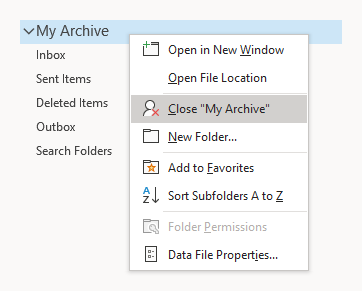
The root folder is the top folder of a mailbox.
Another way to remove an opened pst-file from your mail profile is to go to the Data Files list, select the pst-file that you want to disconnect, and click the Remove button. This will only remove the file from Outlook and not delete it from your disk.
- Outlook 2007
File-> Data File Management… - Outlook 2010 / 2013 / 2016 / 2019 / Microsoft 365
File-> Account Settings-> Account Settings…-> tab Data
Note:
You cannot remove a pst-file which is marked as the default or pst-files which are still associated with an e-mail account.
Deleting a pst-file
 If you want to delete a pst-file from your disk, make sure you have removed the pst-file from Outlook first. If you do not do this, you’ll end up with errors in Outlook could possibly ending up corrupting your mail profile.
Deleting a pst-file is really not the way to start Outlook in a clean “non-configured” state. If you want to start over, recreate your mail profile instead.
Archive.pst file
 The archive.pst file is the default name for pst-files created by AutoArchive. Subsequent archive files will be numbered like archive1.pst, archive2.pst, etc…
AutoArchive is a feature of Outlook to automatically off-load older messages of your main pst-file or Exchange or Outlook.com mailbox to another pst-file. By doing so, you can keep the pst-file with your most current messages smaller which could lead to an improved performance of Outlook and faster (daily) backups of your main pst-file.
Tip!
Schedule the frequency of the backups of your archive.pst at the same interval of AutoArchive to make sure you still have a copy of all your mail. If you enable AutoArchive, the default archiving interval is 14 days.
Network support for pst-files
 While it may sound like a good idea for sharing and centralized backup purposes, you should not connect to a pst-file located on a network share. This configuration is not recommended or supported by Microsoft. Doing so could lead to poor performance of Outlook, data corruption or even data loss. Several features such as Instant Search and AutoArchive could also stop functioning or produce errors when the pst-file is located on a network drive.
To still have the benefit of a centralized backup system, you can still backup a local copy of your pst-file to a network share.
Tool Tip!:
There are various free tools and scripts available to automate your pst-file backups of set reminders to make a backup when you close Outlook (as often as once a day) and initiate a backup for all your pst-files to a network share with a single click.
Fixing a broken pst-file with scanpst.exe
 When a pst-file gets corrupted you can use scanpst.exe to search for and fix errors.
The location of scanpst.exe depends on your version of Outlook. To find the location of scanpst.exe for your version of Outlook and how you can use it to repair your pst-file see; Using the Inbox Repair Tool (scanpst.exe)
Tool Tips!
Scanpst.exe cannot fix all type of corruptions of a pst-file. When a pst-file is too badly corrupted you can then try repairing or salvage recoverable items via a 3rd party recovery tool.
Popular data recovery tools for Outlook are;
- DataNumen Advanced Outlook Repair (discount code: DNC-PUXB-HT )
- Cimaware OutlookFIX
- Stellar Repair for Outlook
Use their trial versions first to determine if they can recover more data from your pst-file than scanpst.exe.
ANSI and Unicode formatted pst-files
 With Outlook 2003, the format of the pst-file changed from ANSI to Unicode. The main reason for this was to allow for international character support and to extend the maximum size of the pst-files beyond the 2GB limit of the ANSI formatted pst-files.
- Newly created pst-file in Outlook 2003 and later are in Unicode format by default.
- Outlook 2002/XP and previous cannot open Unicode formatted pst-files.
- Outlook 2003 and later can open both ANSI and Unicode pst-files.
- Unicode formatted pst-files created in either version of Outlook can be opened in Outlook 2003 or later.
Tips!
- To find out if your current pst-file is an ANSI or Unicode formatted pst-file see;
Am I in ANSI or UNICODE format? - ANSI formatted pst-file are not automatically converted to Unicode by opening them in a later version of Outlook. To convert them see;
Migrate from ANSI to UNICODE
Maximum size of a pst-file
 Pst-file which are in ANSI format can become up to 2GB. If the file grows any larger, it could become corrupted and you won’t be able to open it in Outlook anymore. In that case, you’ll have to use the PST2GB crop tool to reduce its size before you can open it again.
The new Unicode formatted pst-files have a configured maximum size of 20GB in Outlook 2003 and Outlook 2007. In Outlook 2010, 2013, 2016, 2019 and Microsoft 365 this limit has been set to 50GB.
You can increase the maximum size of a Unicode formatted pst-file by modifying a Registry value. For details see; Increase maximum size pst-files.
Reducing the size of a pst-file
 As the pst-file is a database file, it will not directly shrink in size after you have deleted something from it and emptied the Deleted Items folder. This is to optimize performance as shrinking and expanding files is a relatively slow process.
The space that is left by these permanently deleted items is known as “white space”. Outlook will automatically start compacting the pst-file when there is more than 20% of “white space” in the pst-file and the computer is left idle with Outlook running. During this compacting process, the free space within the pst-file is returned to the disk and the file will become smaller.
Tips!
- To force a manual Compact of the pst-file see;
Shrink pst-file after cleanup with Compact Now. - To force Outlook to always compact the pst-file upon closing see;
Permanently delete from pst-file and Compact Now
System Restore and pst-files
 Because of the original location of the pst-file (the local profile folder of the user) it is a common misconception that using System Restore will allow you to recover a deleted or corrupted pst-file. This is however not the case; a pst-file isn’t a system file but a data file.
This means the opposite is also true; running a System Restore will not delete any of your received messages from after the restore date. However, when going for a System Restore, it is always recommended to have a proper backup of your Outlook data as well as any other data that you hold dear.
Difference between ost-files and pst-files
 If you are using an IMAP, Exchange or Outlook.com account, you might have noticed that there are also ost-files. Ost-files are cached copies of IMAP, Exchange or Hotmail mailboxes to improve performance and also allow you to access them off-line.
Unlike pst-files, ost-files are tied to the mail account configuration and cannot be opened individually. Restoring access to an ost-file can be done via System Restore if you only just deleted the account but still have the ost-file. Doing a System Restore will restore your mail profile configuration and thus also the account which belonged to the ost-file.
If all you have is an ost-file and the System Restore method didn’t work or it has been too long since you deleted the mail account, then there are several data recovery tools available to convert an ost-file into a pst-file such as Stellar Converter for OST. For additional recovery tools see; Data recovery tools.

