
 When you configure multiple POP3 accounts in Outlook, all the emails will be delivered to their own dedicated pst-file.
In older versions of Outlook, all emails from all POP3 accounts used to be delivered to a single pst-file which created a Unified Inbox.
Outlook can still be configured this way today without losing the indication by which account you received a message with.
It also has an option which lets you decide which folder the emails should be delivered to without the use on any Message Rules. This allows you to still use only a single pst-file but still separate the incoming emails from each account.
This guide introduces that and several other techniques which you can use to sort your email based on the account you have received it with.
While this guide is mainly focused on separating mails received from different accounts, the techniques can be used to sort mail based on other criteria as well.
- Deliver email to a dedicated pst-file per POP3 account
- Deliver email to a specific folder within an existing pst-file
- Message Rules
- Add Accounts column
- Arrange and Group By E-mail Account
- Conditional Formatting
- Filtered Views
- Search Folders
Deliver email to a dedicated pst-file per POP3 account
 By default Outlook uses a separate dedicated pst-file per POP3 account. This dedicated folder set contains the following default folders;
- Deleted Items
- Inbox
- Junk E-mail
- Outbox
- Sent Items
- Search Folders
When the account has its own folder set, all the emails are automatically stored in the corresponding folders without the need for configuring anything else like for instance rules. So your Sent Items are also automatically separated when using this technique.
If your POP3 accounts are configured to deliver all emails to the same pst-file, you can separate them into multiple pst-files again in the following way.
- Open the Account Settings dialog
- File-> Account Settings-> Account Settings…
- Select the POP3 account which you want to redirect to its own folder set.
Press the”Change Folder” button at the bottom.
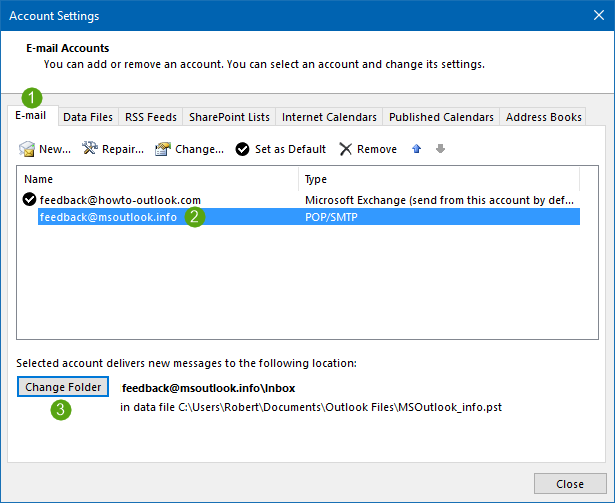
- In the “New E-mail Delivery Location” dialog, click on: New Outlook Data File…
- When prompted for the type of data file, select “Outlook data file (.pst)”.
- Note:
You may not be prompted at all if you don’t have multiple store providers installed such as for iCloud.
- Note:
- Give the pst-file a name and set the location where you want to store your pst-file.
- I recommend to store the pst-file in a location that is also included in your backups. See our Backup and Restore guide for more information on that.
I also recommend to name the pst-file after your account so<account name>.pst - To lookup or change the names of your account see: Rename your accounts.
- I recommend to store the pst-file in a location that is also included in your backups. See our Backup and Restore guide for more information on that.
- Select the Inbox folder in the newly created pst-file.
- Press OK to close the New E-mail Delivery Location dialog.
- Repeat the steps to create additional folder sets for each account that you have.
- Press Close to close the Account Settings Dialog.
In contrast to using rules to separate your email, you’ll still be getting an envelope in your Notification Area when a new mail arrives. You can create additional folders and rules to further organize your mails. The accounts still share the Contacts, Calendar, Journal, Notes and Tasks folder of your main folder set. You can of course create additional ones if you want. Flagged items will also show up in the To-Do Bar.
The changes are instant although you still need to move your already received emails. I would recommend creating a Search Folder for that in your original pst-file where the messages were received.
Deliver email to a specific folder within an existing pst-file
 With the same technique as mentioned above, you can also specify a specific folder within an existing pst-file (or even an Exchange mailbox) rather than a separate pst-file.
This is particularly handy when you want to have a unified Inbox folder or use Search Folders all across you mailbox.
You can set delivery to a single Inbox folder but also a subfolder of it or a new parent level folder.
- Open the Account Settings dialog
- File-> Account Settings-> Account Settings…
- Select the POP3 account for which you want to change the delivery folder.
- Press “Change Folder”.
- Select an existing folder or create a new one.
- Press OK to close the New E-mail Delivery Location dialog.
- Repeat the steps to create additional folder sets for each account that you have.
- Press Close to close the Account Settings Dialog.
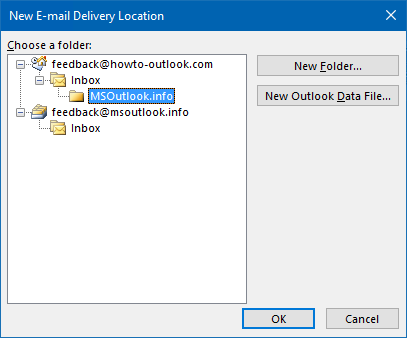
You can change where new messages should be delivered to for each
POP3 account.
Note:
Auto Account Selection will not work in this configuration so when you create a new message, the sending account will be set to your default account rather than the account the folder belongs to.
Message Rules
 Using Message Rules is probably the most common method to sort your email. You can also create a rule that does something special to a message (like to move it to another folder) when it is being received via a specific account.
Although it essentially does the same as the method discussed above, this rule condition can still be useful as there are many other actions to choose from beside moving it to another folder at the same time.
- Select your Inbox folder.
- Open the Rules and Alerts dialog
- File-> Manage Rules & Alerts
- On the E-Mail Rules tab press: New Rule…
- From “Start from a blank rule” select
- Apply rule on messages I receive
- Press Next.
- From the list of conditions choose: through the specified account
You’ll see the condition added to the bottom field. - In the bottom field click on the word “specified”.
- Select the account for which you want to move the emails to another folder and press OK
To lookup or change the names of your account see: Rename your accounts. - Press Next.
- From the list of actions choose: move it to the specified folder
You’ll see the condition added to the bottom field. - In the bottom field click on the word “specified”
- Select the folder you want the email messages from that account to move to.
You can also create a new folder. Naming the folder after the account name would be recommended. - Press Next.
- Don’t select any exceptions.
- Press Next.
- Name the rule. For instance: “Move messages for <account name>”
- Verify that the rule is turned on.
- If you want to move the messages that were already received via that account and are currently in your Inbox folder, select the option:
Run this rule now on messages already in “Inbox” - Press Finish.
- Repeat the steps to create additional rules for each account that you have.
- Press OK to close the Rules and Alerts dialog.
Tip:
Outgoing messages can be sorted by a rule in much the same way. You need to disable the default saving of outgoing messages first though. For full instructions see the guide: Sorting Outgoing E-mails.
The changes are not instant as the rule will only execute for new mails that are being received after you have created the rule. If you want to sort the messages that you already have received you must manually execute the rule via the “Run Rules Now…” button in the Rules and Alerts dialog.
Add Accounts column
 If you don’t like separating you mails into different folders, a very easy and quick method to see which account was used to retrieve the email is by adding the Accounts column to your view.
- Open the Fields/Column Chooser:
- Simplified Ribbon (Microsoft 365)
View-> Current View-> View Settings…-> Columns… - Classic Ribbon
View-> View Settings-> Columns…
- Simplified Ribbon (Microsoft 365)
- In the “Select available fields from:” drop down list select: All Mail fields
- Select “Email Account” and press the “Add ->” button
- You can move the column higher or lower in the list to order it to your needs
- If you have a lot of fields enabled, you might need to add additional lines when you have “single-line layout” disabled. You can set the amount of lines to use at the top of the current dialog.
To enable or disable “single-line layout”:- Press OK to close the “Show Columns” dialog.
- Press “Other Settings…”
- At the bottom change the option:
- Use compact layout in widths smaller than x characters
- Once disabled, you can select “Always use single-line layout” or “Always use compact layout”
Enabling single-line layout works best when you have your Reading Pane at the bottom or when you have a widescreen monitor with a high resolution.
- OK yourself out of any open dialog.
The changes are instant to the folder that you are in. If you want the column added to every folder you can do so by modifying the default Messages view or by applying the customized view to multiple folders at once. See the post “Applying views to all folders” for more details on how to do that.
Arrange and Group By E-mail Account
 There is a special view setting which allows you to arrange your emails by E-mail Account.
While on its own this might be a little clumsy when you have a lot of emails in that folder, it is a handy view setting when you combine it for instance with a Search Folder (like my “Today’s Unread Mail”) or a filtered view (when you filter on something different than the account).
To arrange your mail by e-mail account use:
- Simplified Ribbon (Microsoft 365)
View-> Arrange By-> Account - Classic Ribbon
View-> Arrangement Gallery-> Account
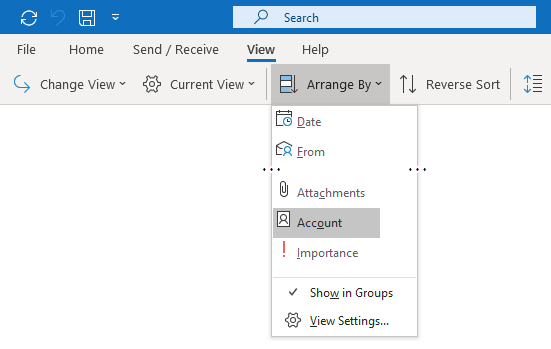
Changing the Arrange By setting to Account in Outlook for Microsoft 365.
I would recommend to also enable “Show in Groups” when using this view;
- Simplified Ribbon (Microsoft 365)
View-> Arrange By-> Show in Groups - Classic Ribbon
View-> Expand Arrangement Gallery-> Show in Groups
The changes are instant to the folder that you are in. If you want the “Arrange By” setting to apply to every folder you can do so by modifying the default Messages view or by applying the customized view to multiple folders at once. See the post “Applying views to all folders” for more details on how to do that.
Conditional Formatting
 If highlighting is enough for you, you can achieve this by using Conditional Formatting. This way a mail from a certain account will be shown in a different color in your mail list.
- Open the Conditional Formatting dialog:
- Simplified Ribbon (Microsoft 365)
View-> Current View-> View Settings…-> Conditional Formatting… - Classic Ribbon
View-> View Settings-> Conditional Formatting…
- Simplified Ribbon (Microsoft 365)
- Press the Add button.
- Name the rule. The easiest is to name this after the account that this rule will apply to. To lookup or change the names of your account see: Rename your accounts.
- Press the Font… button to assign font properties to make the message strike to you. This can be a different font, a larger size, different text color or some text effects.
- Press the Condition… button.
- In the new dialog press the Advanced tab.
- Press the Field button and from the section “All Mail fields” choose “E-mail Account”.
- Set the condition to “is (exactly)” and set the value to the name of your email account.
- Press the “Add to list” button.
- Press OK to close the open dialog.
- Repeat the steps for any additional mail account that you want to highlight. You can use different font settings for each of them.
- When done creating rules, OK yourself out of the open dialogs.
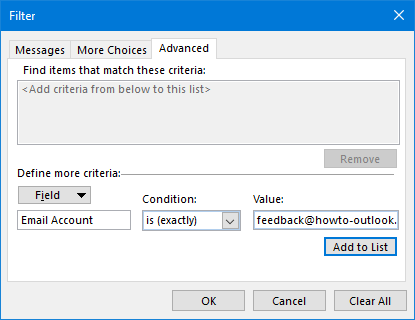
Setting a Conditional Formatting Filter for an account.
The changes are instant to the folder that you are in. If you want the highlighting to apply to every folder you can do so by modifying the default Messages view or by applying the customized view to multiple folders at once. See the post “Applying views to all folders” for more details on how to do that.
Filtered Views
 Creating a filtered view is a very flexible way of separating your POP3 messages received from different accounts. By using filtered views you can still receive all your mails to a single folder but have the benefit of hiding the mails from the other accounts.
- Open the View Manager:
- View-> Change View-> Manage Views…
- Press the New… button.
- Name the view. The easiest is to name this after the account that this view will apply to.
To lookup or change the names of your account see: Rename your accounts. - Select: Table.
- Select: All Mail and Post folders.
- Press OK.
- Press Filter…
- In the new dialog press the Advanced tab.
- Press the Field button and from the section “All Mail fields” choose “E-mail Account”.
- Set the condition to “is (exactly)” and set the value to the name of your email account.
- Press the “Add to list” button.
- Press OK to close the open “Filter” dialog.
- Press OK to close the “Customize View” dialog.
- Repeat the steps to create additional views for each account that you have.
- When done creating view press the Close dialog.
The changes are instant when you switch to a certain view. As we have defined our own view which applies to all mail and post folders, you can use this view in every folder within your mailbox or by applying the customized view to multiple folders at once. See the post “Applying views to all folders” for more details on how to do that.
Search Folders
 Search Folders are a great way to find all messages anywhere in your mailbox which match certain criteria. You can then manage these messages as they were located in the same folder and sort them with additional techniques like color coding.
In this example, let’s create a Search Folder that displays all messages received via a specific account;
- Open the New Search Folder dialog:
- Keyboard shortcut: CTRL+SHIFT+P
- Right click on “Search Folders” in the Folder Pane and choose: New Search Folder…
- Custom-> Create a custom Search Folder.
- Press the “Choose…” button.
- Name the Search Folder.
For instance, name it after the mail account it will apply to.
To lookup or change the names of your account see: Rename your accounts. - Press the button: Criteria…
- In the Search Folder Criteria dialog, select the Advanced tab.
- Press the Field button and from the section “All Mail fields” choose “E-mail Account”.
- Set the condition to “is (exactly)” and set the value to the name of your email account.
- Press the “Add to list” button.
- Press OK until all open dialogs are closed.
- Repeat the steps to create additional Search Folders for each account that you have.
The changes are instant when you select your newly created Search Folder. However, depending on the size of your mailbox, it could take a while before the view is constructed.
Tip:
To speed up the Search Folder, you can use the “Browse…” button when creating the Search Folder to select only the folders that receive emails. For instance, exclude your RSS folders and Sent Items folder.
To customize a Search Folder, right click on it and choose “Customize this Search Folder…”.

