
 Although the Import and Export wizard allows you to export to an Excel spreadsheet, the Wizard doesn’t allow you to export all the fields and filtering the mapped fields is a cumbersome process as well.
The export to Excel option has been removed from Outlook 2013 mainly because it was still using the old xls-format instead of the new xlsx-format. You can still achieve the same by exporting to the csv-format but that can be even more cumbersome.
Fortunately there is another, more graphical (WYSIWYG), way to do this as well via the copy/paste method.
- Change your view to a table view like the “Phone List” view;
- Outlook 2010 / 2013 / 2016 / 2019 / Office 365 (Classic Ribbon)
Home-> group: Current View-> Phone - Office 365 (Single Line Ribbon)
View-> Change View-> Phone List - Outlook 2007
View-> Current View-> Phone List
- Outlook 2010 / 2013 / 2016 / 2019 / Office 365 (Classic Ribbon)
- Insert and arrange the columns you want to export to Excel
- Outlook 2010 / 2013 / 2016 / 2019 / Office 365 (Classic Ribbon)
View-> group: Arrangement-> button Add Columns - Office 365 (Single Line Ribbon)
View-> click on the 3 dots on the right (…)-> Add Columns - Outlook 2007
View-> Current View-> Customize Current View…-> button Fields…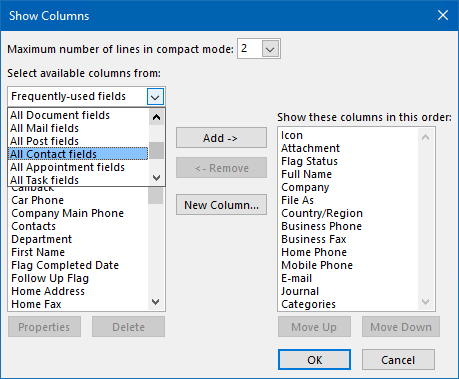
You can choose between even more fields by selecting “All Contact fields” from the “Select available columns from” dropdown list.
- Outlook 2010 / 2013 / 2016 / 2019 / Office 365 (Classic Ribbon)
- Press OK until all the open screens are closed.
- Press CTRL+A to select al your contacts.
(In Outlook 2007, you can also use Edit-> Select All) - Press CTRL+C to copy your selected Contacts.
(In Outlook 2007, you can also use Edit-> Copy) - Open up Excel and select cell A1.
- Press CTRL+V to paste all contact information or use the Paste button on the Ribbon or on the Toolbar.
- Save your Excel sheet

Note:
This is an export and not a backup. For information on backing up and restoring your Outlook Contacts and other data see the guide: Backup and Restore all Outlook data.

