
For certain actions, Outlook holds a list of most recently used items (MRU lists) so you have quicker access to them. In some cases you might want to clear this MRU list.
Outlook holds two different kind of MRU lists. Some are tied to the general Outlook configuration of the logged in user and others are tied to the specific mail profile Outlook has been started with.
To clear either MRU list, you can simply delete the corresponding registry key when Outlook is closed. If you are not comfortable editing the Registry yourself you can use OutlookTools instead.
Profile MRU
MRU lists that are kept in the mail profile are stored in the following Registry key:
- Outlook 2016, Outlook 2019 and Office 365
HKEY_CURRENT_USER\Software\Microsoft\Office\16.0\Outlook\Profiles\profile name\0a0d020000000000c000000000000046 - Outlook 2013
HKEY_CURRENT_USER\Software\Microsoft\Office\15.0\Outlook\Profiles\profile name\0a0d020000000000c000000000000046 - Outlook 2010 or previous
HKEY_CURRENT_USER\Software\Microsoft\Windows NT\CurrentVersion\Windows Messaging Subsystem\Profiles\profile name\0a0d020000000000c000000000000046
Note: Replace profile name with the name of your mail profile (by default it is called Outlook).
| MRU | Registry key |
|---|---|
| Actions, New Mail Using, Stationery names (Outlook 97 – 2007) | 101f035e |
| New Items, Email Message Using, Stationery names (Outlook 2010 – 2019 / Office 365) | 101f035e |
| File, Open, Other User’s Folders (Outlook 97 – 2002) | 101e0384 |
| File, Open, Other User’s Folders (Outlook 2003 – 2007) | 101f0390 |
| Move to Folder history | 101f031e |
| Insert, Signature | 101f035c |
| Instant Search’s Recent Searches (Outlook 2007 – 2010) | 101f0445 |
| Instant Search’s Recent Searches Mail (Outlook 2013 – 2019 / Office 365) | 101f0445 |
| Instant Search’s Recent Searches Calendar (Outlook 2013 – 2019 / Office 365 ) | 101f0460 |
| Instant Search’s Recent Searches People (Outlook 2013 – 2019 / Office 365) | 101f0461 |
| Instant Search’s Recent Searches Tasks and To-Do List (Outlook 2013 –2019 / Office 365) | 101f0462 |
| Instant Search’s Recent Searches Notes (Outlook 2013 –2019 / Office 365) | 101f0463 |
| Find Contact toolbar button (Outlook 2007 – 2010) | 101f0446 |
| Insert, Business Card (Outlook 2007 – 2019 / Office 365) | 101f042b |
| Save Sent Item To (Outlook 2007 – 2019 / Office 365) | 101f0449 |
Note:
When you are using Outlook 2016, Outlook 2019 or Office 365 and are using a mailbox hosted on Office 365 (including Outlook.com), Exchange 2016 or Exchange 2019, the Search history that is shown when clicking in the Search field isn’t stored within the Registry but directly within your mailbox. Deleting the key will delete the history that is shown when you click on the Recent Searches button on the Search tab.
Outlook MRU
MRU lists that are specific for the logged in user are kept in the following key;HKEY_CURRENT_USER\Software\Microsoft\Office\version\Outlook\
Replace version with the number corresponding to your Outlook version;
| Outlook 97 | 8.0 |
| Outlook 98 | 8.5 |
| Outlook 2000 | 9.0 |
| Outlook 2002/XP | 10.0 |
| Outlook 2003 | 11.0 |
| Outlook 2007 | 12.0 |
| Outlook 2010 | 14.0 |
| Outlook 2013 | 15.0 |
| Outlook 2016 | 16.0 |
| Outlook 2019 | 16.0 |
| Office 365 | 16.0 |
The MRUs are kept in the following subkeys;
| MRU | Registry key |
|---|---|
| Find Contact toolbar button (Outlook 97 – 2003) | \Contact\QuickFindMRU\QuickfindMRU |
| Find Pane’s Look in list | \Contact\StripSearchMRU\StripSearchMRU |
| Appointment Locations | \Preferences\LocationMRU |
| Advanced Find’s Search for Word(s) | \Office Finder\MRU 1 |
| Advanced Find’s More Choices, Categories | \Office Finder\MRU 3 |
| Choose Form dialog New Item-> More Items-> Choose Form (Outlook 2010 – 2019 / Office 365) | \Office Explorer\Namespaces |
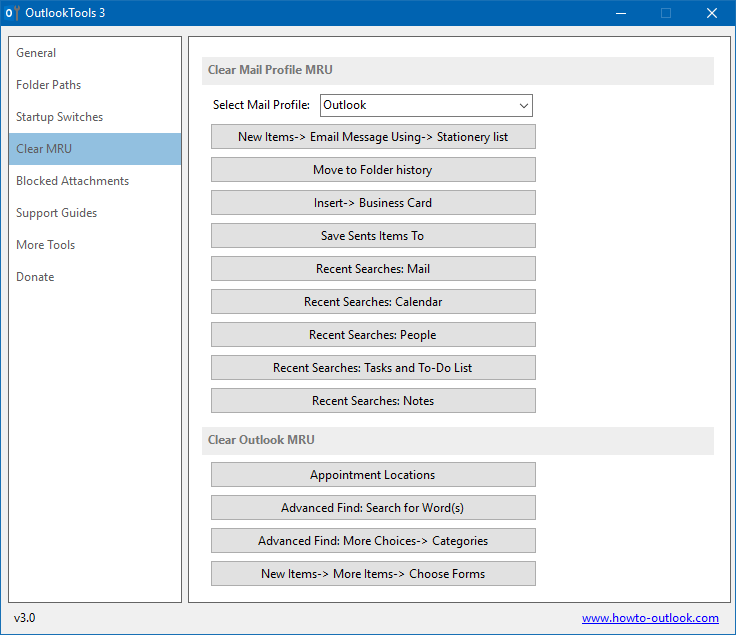
Easily clear the MRU lists with OutlookTools.

