
 When opening an attachment directly from within Outlook you could get an error message saying that it can’t create the file and to that you need check the permissions on the folder you want to save it in.
In most cases the permissions on the folder isn’t the issue but the fact that the folder is “full”. When you open an attachment directly from within Outlook it will first save a copy to a subfolder of the Temporary Internet Files folder.
Cleaning out the folder will solve the issue.
Outlook Secure Temp folder
 Unfortunately this is easier said than done. The subfolder name Outlook creates (after opening the first attachment) is located with the Temporary Internet Files folder and contains a random element.
The top-level folder is called “Content.Outlook” and then has a subfolder which is named with with 8 random numbers and letters.
In addition, by default, you cannot simply browse to the folder to clean it out. Getting to the Temporary Outlook Folder can still be accomplished in 2 easy steps though.
Step 1: Locate the folder
The folder location is stored in the registry in the following key;
| Outlook 2007 | HKEY_CURRENT_USER\Software\Microsoft\Office\12.0\Outlook\Security |
| Outlook 2010 | HKEY_CURRENT_USER\Software\Microsoft\Office\14.0\Outlook\Security |
| Outlook 2013 | HKEY_CURRENT_USER\Software\Microsoft\Office\15.0\Outlook\Security |
| Outlook 2016 | HKEY_CURRENT_USER\Software\Microsoft\Office\16.0\Outlook\Security |
| Outlook 2019 | HKEY_CURRENT_USER\Software\Microsoft\Office\16.0\Outlook\Security |
| Office 365 | HKEY_CURRENT_USER\Software\Microsoft\Office\16.0\Outlook\Security |
Step 2: Get to the folder
- Open the
OutlookSecureTempFolderregistry key from the location provided in Step 1. - Copy the path from the key.
- Open Explorer.
- Paste the address in the Address Bar and press Enter.
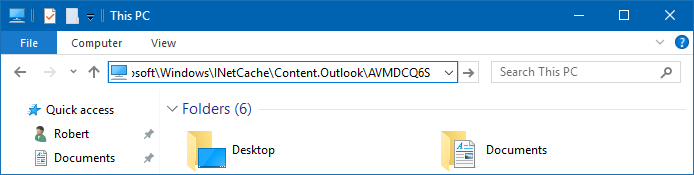
Paste the found path in the address bar of File Explorer to easily get to the folder.
Use OutlookTools or OutlookTempCleaner
Still not easy enough or just don’t want to go in the Registry to find the folder location? I’ve created two free tools which can do the trick as well.
OutlookTools offers besides locating, opening and cleaning up the SecureTempFolder also quite a lot of additional features to troubleshoot and tweak Outlook.
OutlookTempCleaner focuses only on dealing with the SecureTempFolder and can also be used in (corporate) login and logoff scripts to clean up the folder without any end-user interaction.
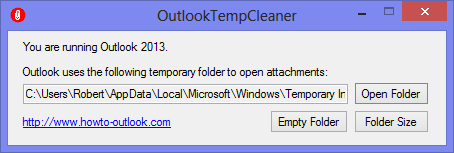
OutlookTempCleaner can detect and empty Outlook’s Secure Temp folder automatically for you.

