
 An Out of Office Assistant (OOF) allows you to set an automatic reply message when you are away. How to enable this depends on which Outlook version that you are using and which mail account type that you are using.
While this is primarily an Exchange account feature, there are several workarounds for POP3 and IMAP accounts as well.
- Connected to Exchange
- Web Mailbox (POP3/IMAP)
- Outlook.com and Hotmail accounts
- Gmail
- Emulate in Outlook without Exchange
- Which mail account type am I using?
Connected to Exchange
 If you are using an Exchange account, you can set the Automatic Reply or Out of Office Assistant (OOF) to have the Exchange server reply with a specific message while you are away.
- File-> section Info-> Automatic Replies
Since the Exchange server sends the Automatic Reply message, you can close Outlook and shutdown your computer and it will still send the message.

OOF/Automatic Replies in Outlook Desktop.
Note 1:
The Automatic Reply message will only be sent once to each sender, even when they email you multiple times during your absence. To reset, simply turn the Automatic Reply off and then back on again.
Note 2:
By default, Exchange does not allow Automatic Replies and OOF messages to the Internet. Your Exchange administrator can enable this on the Exchange server in the following way; Allow Automatic Forwarding/Replying to the Internet
ToolTip! Are you an Exchange administrator and need to regularly manage the Automatic Replies settings for your users?
CodeTwo Exchange Rules Pro simplifies this task with its Auto Respond module and also offers some other management features which Exchange doesn’t offer itself. It even has the option to delegate this task to someone else like HR managers, receptionists, assistants or team leaders. It also has loop protection to prevent auto-reply loops.
Web Mailbox
 If you are not in an Exchange environment, your ISP might provide Out of Office functionality in the web based mailbox (ask your ISP for the web address to check your mail via a browser if you do not know this).
Usually you can find an Out of Office setting in the Options section. Some have named it “Away message”, “Holiday notification”, “Automatic response” or something like that. The benefit of setting it on-line is that you can close Outlook (and shutdown your computer) and people mailing you will still be getting your away-message.
Outlook.com and Hotmail accounts
 Outlook.com and Hotmail accounts are also configured as Exchange accounts in Outlook and thus you can enable the Automatic Reply from within Outlook as described in the Exchange section.
As an alternative, you can also set it via the Outlook.com website itself.
- Log on to Outlook.com.
- Click on the Gear icon in the top right (left from your name and picture)-> link at bottom: View all Outlook settings-> section: Mail-> Automatic Replies
- Quick Tip!
After pressing the Gears icon, you can also type “Automatic Replies” in the Search field.
- Quick Tip!
- Select: Turn on automatic replies.
- Tip!
For privacy and security reasons, you have the option to reply to your contacts only.
- Tip!
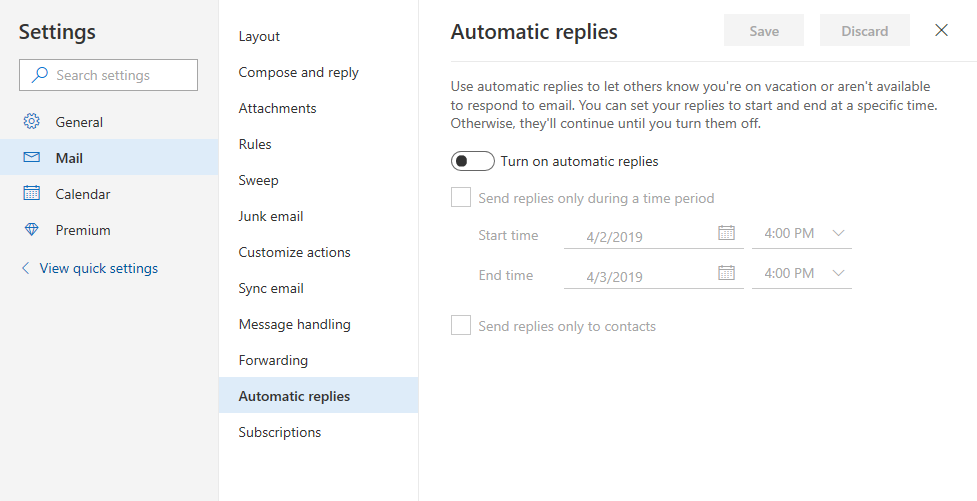
Automatic replies command in Outlook.com.
Gmail
 If you are using a Gmail account, you can set a vacation responder in the following way.
- Log on to Gmail.
- Click on the Gear icon in the top right corner (below your profile image) and choose; See all settings.
- This direct link might work for you as well; Gmail Settings
- Scroll down the General tab of the Settings page and somewhere near the bottom (under your signature settings), you can select “Vacation responder on” and specify your message.
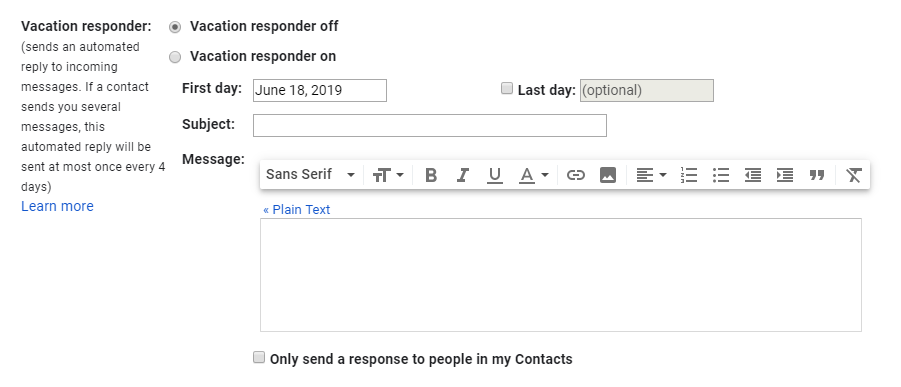
Settings vacation responder in Gmail.
Emulate in Outlook without Exchange
 If your ISP doesn’t provide an Automatic Replies feature, you can create a rule that replies to all e-mails. The downside of this, is that you’ll need to have your Outlook open all the time for the rule to process.
- Before creating the rule, you must create a message template.
- Create a new e-mail and write your Subject and Message.
- Use File-> Save As to save it as an Outlook Template (*.oft).
- Once saved, you can close the message and dismiss the prompt to save changes as a draft.
- Open the Rules and Alerts dialog:
- File-> Manage Rules & Alerts
- Create a new rule and select:
- Apply rule on messages I receive
- Click Next.
- You can select a condition or no condition to reply to every mail.
- Click Next.
- Select: reply using a specific template.
- Click on “a specific template” at the bottom of the dialog to open the “Select a Reply Template” dialog.
- Set the “Look In” dropdown list to: User Templates in File System
Select your template created in Step 1. You can use the Browse… button when you did not save it in the default Templates folder.
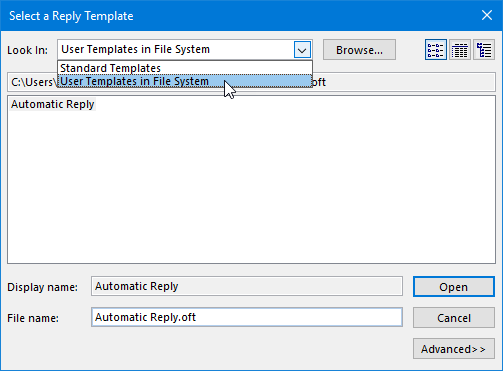
- Click Open to return to the Rules Wizard.
- Click Next.
- Make sure you set some exceptions, for instance based on the subject field so it will not reply on subject with e.g. reply, failed, undeliverable, etc….
- Important!
If you do not set any exceptions, you could create endless mail loops between two mail servers and those can be a real threat to the mail servers and can leave you with a lot of cleaning up to do when returning!
- Important!
- Click Next.
- Name the rule and make sure it is turned on.
- Click Finish.
The rule should now end up looking something like this;
Apply this rule after the message arrives
(set no conditions to reply to every mail)
reply using a specific template
except if the subject contains specific words
Which mail account type am I using?
 To check the type of account that you are using (Exchange, POP3 or IMAP) you can open the Account Settings dialog;
- File-> Account Settings-> Accounts Settings…-> tab E-mail

