
 When trying to use the Address Book to address a message to a contact, you could find that the contacts from your Contacts folder aren’t listed.
This guides lists the two things you’ll need to check and set correctly, and offers a solution in case that fails.
- Make sure the Outlook Address Book service is added to the Mail Profile
- Make sure that the Contacts folder is marked as an Outlook Address Book
- Address Book service is broken
Make sure the Outlook Address Book service is added to the Mail Profile
 Outlook can only show contacts from your Contacts folder(s) in the Address Book when the Outlook Address Book Service has been added to your mail profile. You can add this service in the following way.
- Open the Address Book lists for your mail profile;
- Outlook 2007
Tools-> Account Settings…-> tab Address Books - Outlook 2010 / 2013 / 2016 / 2019 and Office 365
File-> Account Settings-> Account Settings…-> tab Address Books
- Outlook 2007
- If the Outlook Address Book service is added already, you should mark your Contacts folder as an Outlook Address Book.
- If the Outlook Address Book service has not been added yet, press the New… button.
- Select “Additional Address Books” and click Next.
- Choose “Outlook Address Book” and click Next.
- You’ll be prompted that you must close and restart Outlook for changes to take effect.
- Press OK and close and restart Outlook.
- The service is now added.
Make sure that the Contacts folder is marked as an Outlook Address Book
 If the Outlook Address Book service is added into the profile you can make any Contacts folder (so even the additional ones you may have made yourself already) show in the Address Book. To do so right click the Contacts folder and choose Properties-> tab Outlook Address Book-> select option Show this folder as an e-mail Address Book.
You should now be able to select Contacts by using the Address Book.
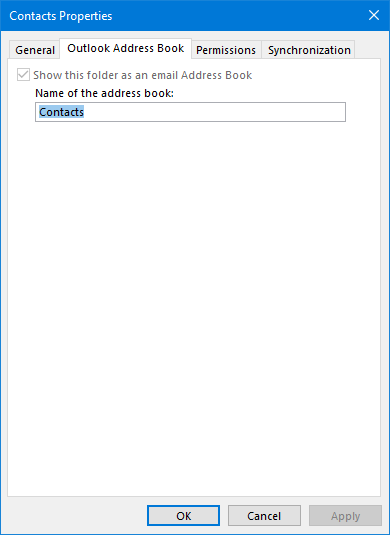
Your default Contacts folder should already be selected and is not removable.
Address Book service is broken
 When the Outlook Address Book service has already been added and the option to select the Contacts folder as an Outlook Address Book is still disabled and greyed out, it means that the Outlook Address Book service is corrupted.
To fix this you’ll have to recreate your Mail Profile.

