
 The Personal Folders Backup add-in creates backup copies of your .PST files at regular intervals making it easy to keep all of your Outlook folders safely backed up.
Although the download site states that it only works with Outlook 2002, 2003 and 2007, it can actually be made compatible with Outlook 2010 as well with a Registry.
Unfortunately it can’t be made compatible anymore with Outlook 2013, 2016 and 2019, nor can it with Office 365. However, for these versions, alternatives are available as well.
Update:
The Personal Folders Backup add-in is no longer available for download as all the related Outlook versions have been out of support for quite some time now and the add-in is not compatible with any currently supported version of Outlook.
For alternatives see the section; Backup Add-in and Outlook 2013 / 2016 / 2019 / Office 365.
- Backup command not available
- Backup Add-in and Outlook 2010
- Backup Add-in and Outlook 2010 64-bit and Click to Run
- Backup Add-in and Outlook 2013 / 2016 / 2019 / Office 365
Backup command not available
 In some cases after you install the backup add-in, the option File-> Backup… isn’t available and doesn’t appear to be installed. An attempt to reinstall the product however indicates that it has already been installed and the add-in also shows up in Control Panel-> Add/Remove Software.
This is often true when you have upgraded your Outlook version, updated the backup add-in or installed the backup add-in logged on as a different user.
Troubleshooting
- Verify that you have the latest version of the Outlook Backup add-in installed (download is no longer available) to be sure you are not running an older incompatible version. Uninstall your current version and reinstall it from the above download location if you are not sure.
- Make sure the Outlook Backup Add-in is listed and selected as an active add-in:
- Outlook 2007
Tools-> Trust Center…-> Add-ins - Outlook 2010
File-> Options-> Add-Ins
If it is not listed, press the Add… or Go-> Add… button and browse to the following location:- 32-bit version of Windows
C:\Program Files\Microsoft Office\OFFICE12\ADDINS\outbak.dll - 64-bit version of Windows
C:\Program Files (x86)\Microsoft Office\OFFICE12\ADDINS\outbak.dll
- 32-bit version of Windows
- Outlook 2007
- Reset the Toolbar (Outlook 2007 only); all Toolbar customizations will be lost and the Toolbar will reset to what it looked like when you first installed Outlook. It will also add all the buttons and menu options created by add-ins again.
To do this, locateoutcmd.datand rename it tooutcmd.oldwhen Outlook is closed. By default you can find it here:C:\Users\%username%\AppData\Roaming\Microsoft\Outlook\
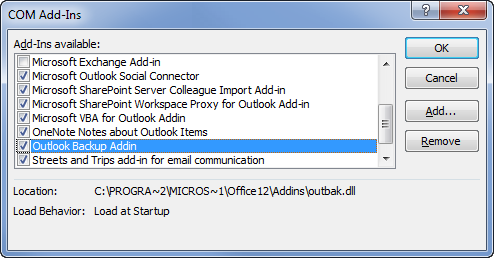
Verify that the Outlook Backup Addin is listed and enabled.
Backup Add-in and Outlook 2010
 If you are using Outlook 2010, you’ll find the command for the Personal Folders Backup Add-in on the Add-Ins tab in the Ribbon. However, due to shutdown changes in Outlook 2010, the backup- add-in will never be triggered to prompt you to make a backup of your Outlook data.
When adding the following key to your Registry, you’ll change the shutdown behavior of Outlook 2010 back to the shutdown behavior of Outlook 2007 SP2.
Key: HKEY_CURRENT_USER\Software\Microsoft\Office\Outlook\Addins\Microsoft.OutlookBackup.1
Value name: RequireShutdownNotification
Value type: REG_DWORD
Value: 1
Tip!
If you do not want to edit your registry manually, you can also apply the reg-file in this zip-download.
Backup Add-in and Outlook 2010 64-bit or Click to Run
The backup add-in only supports the 32-bit version of Outlook 2010. It does not support the 64-bit version nor does it support the Click-to-Run version.
When you try to install it on a computer with the 64-bit or Click-to-Run version of Outlook 2010 installed, you’ll the following error:
Setup has detected that you do not have Outlook 2000, Outlook 2002, or Outlook 2003 installed on this machine. Before this download can be installed you must first install Outlook or an Office family product that includes Outlook.
To continue to install the add-in, you must uninstall the 64-bit or Click-to-Run version of Outlook 2010 and install the 32-bit version. No settings or data will be lost during this process.
Backup Add-in and Outlook 2013 / 2016 / 2019 / Office 365
 Due to deep technical changes to the Mail Profile in Outlook 2013, the Personal Folders Backup Add-in is no longer compatible at all with Outlook 2013 and later. The fixes mentioned above only apply to Outlook 2010 and will not work for Outlook 2013 and later nor do they work for Office 365. However, it quite easy to backup the pst-files manually or via a script.
As the default location for pst-files in Outlook 2013 and later resides in the Documents folder, regularly backing up your Documents folder will also include your Outlook data. To create proper backups, make sure that Outlook is closed at that time (this basically applies to all applications).
There is also a project going on at GitHub called Outlook Backup Add-In which offers similar functionality as the original backup add-in from Microsoft. It is compatible with the 32-bit and 64-bit of Office 365 (Click to Run), Outlook 2019, Outlook 2016, Outlook 2013 and Outlook 2010.
This add-in provides additional features over the original add-in too. For instance, it allows you to add a prefix or suffix to the filename of the backup and even execute a command or script afterwards. When you would point it to

